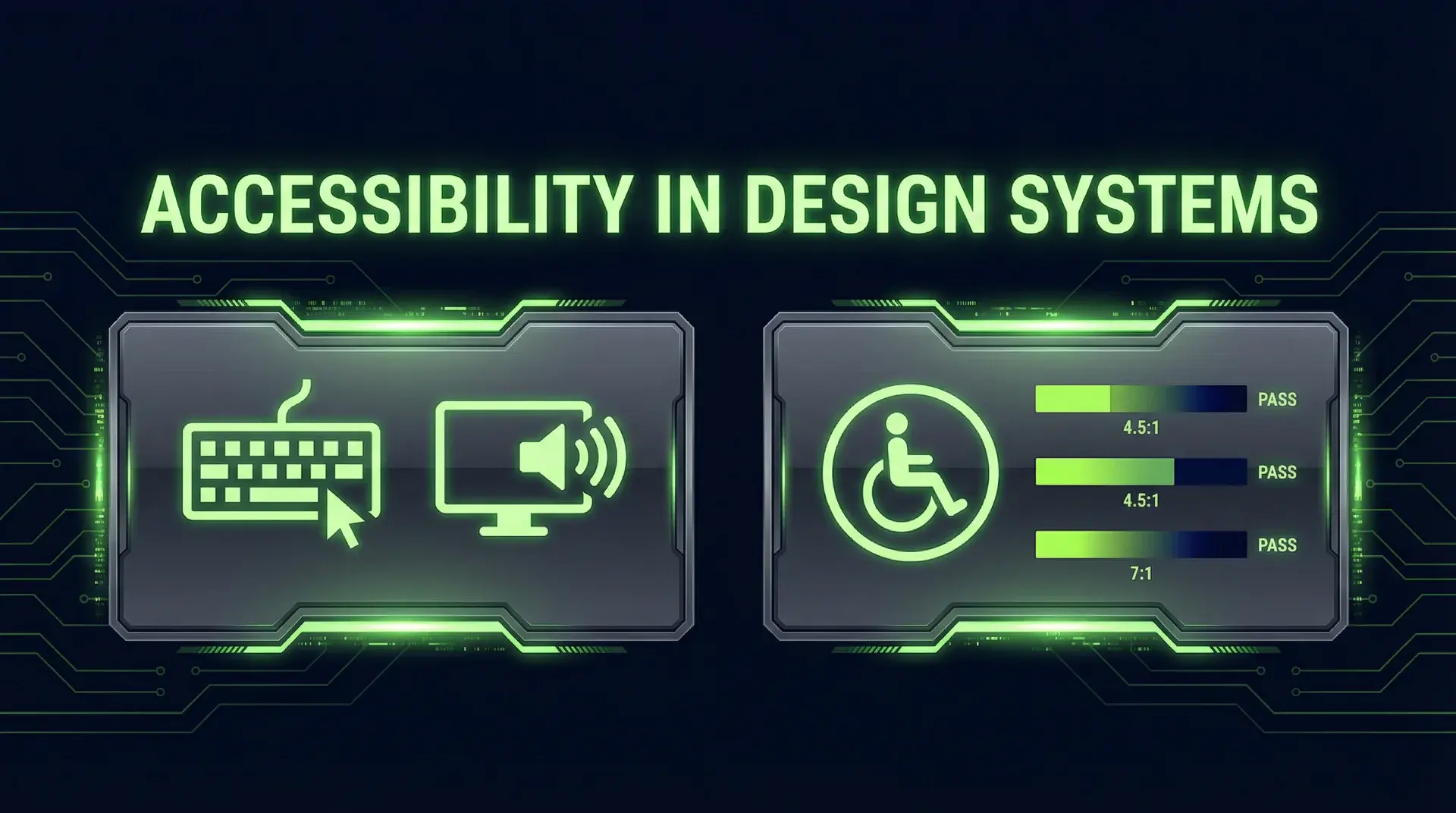
TL;DR
Accessibility is not a feature to add later... it is a fundamental quality attribute that must be encoded into your design system from day one. Retroactive accessibility fixes routinely cost 10x what building it right would have cost. The approach: automated testing with axe-core catches 30-50% of issues, manual screen reader testing catches the rest, and CI/CD enforcement prevents regressions. Build components that are accessible by default, so developers cannot accidentally ship inaccessible UI.
Part of the Modern Frontend Architecture Guide ... design systems, component patterns, and Server Components.
The Business Case for Accessibility
Let me start with the uncomfortable truth: accessibility lawsuits are skyrocketing. ADA web accessibility lawsuits increased 320% between 2018 and 2024. In 2023 alone, there were over 4,600 digital accessibility lawsuits filed in federal court. The average settlement ranges from $10,000 to $100,000, with larger companies facing multi-million dollar judgments.
But framing accessibility purely as legal risk misses the point. One in four adults in the United States lives with a disability. That is 61 million potential customers. When your product is inaccessible, you are not just risking lawsuits... you are excluding a quarter of your market.
Startups regularly discover that their biggest enterprise prospect requires WCAG 2.1 AA compliance as a procurement requirement. No compliance, no contract. A 6-week scramble to retrofit accessibility into a codebase that never considered it can cost six figures in engineering time and put a major customer at risk.
Accessibility is not charity. It is good engineering and good business.
WCAG Fundamentals: The Four Principles
The Web Content Accessibility Guidelines (WCAG) organize accessibility requirements around four principles. Every component in your design system should satisfy all four.
Perceivable
Content must be presentable in ways users can perceive. This means:
- Text alternatives for non-text content (images, icons, charts)
- Captions and transcripts for audio/video
- Content can be presented in different ways without losing meaning
- Sufficient color contrast between text and background
Operable
Users must be able to operate the interface. This means:
- All functionality available via keyboard
- Users have enough time to read and interact
- Content does not cause seizures (no flashing more than 3 times per second)
- Users can navigate, find content, and determine where they are
Understandable
Content and operation must be understandable. This means:
- Text is readable and understandable
- Content appears and operates in predictable ways
- Users receive help avoiding and correcting mistakes
Robust
Content must be robust enough to work with current and future technologies. This means:
- Content is compatible with assistive technologies
- Valid HTML that can be reliably parsed
- Name, role, and value are programmatically determinable
Every component you build should pass the "POUR test"... is it Perceivable, Operable, Understandable, and Robust?
Component-Level Accessibility
Design system components must be accessible by default. Developers consuming your components should not need to think about accessibility... it should be baked in.
ARIA Roles and Attributes
ARIA (Accessible Rich Internet Applications) provides semantic information when native HTML is insufficient. But the first rule of ARIA is: do not use ARIA if you can use native HTML.
// BAD: Using ARIA when native HTML suffices
<div role="button" tabIndex={0} onClick={handleClick}>
  Click me
</div>

// GOOD: Use native HTML
<button onClick={handleClick}>
  Click me
</button>
Native HTML elements come with built-in keyboard handling, focus management, and screen reader announcements. ARIA is for cases where native HTML cannot express the semantics you need.
When ARIA is necessary, get it right:
// Accordion implementation with proper ARIA
function AccordionItem({ title, children, isExpanded, onToggle, id }) {
	const headerId = `${id}-header`;
	const panelId = `${id}-panel`;

	return (
		<div>
			<h3>
				<button
					id={headerId}
					aria-expanded={isExpanded}
					aria-controls={panelId}
					onClick={onToggle}
					className="w-full text-left"
				>
					{title}
				</button>
			</h3>
			<div id={panelId} role="region" aria-labelledby={headerId} hidden={!isExpanded}>
				{children}
			</div>
		</div>
	);
}
Key patterns to internalize:
aria-expanded: Indicates whether a collapsible element is expandedaria-controls: Links a control to the element it controlsaria-labelledby: Links an element to its labelaria-describedby: Links an element to its descriptionaria-live: Announces dynamic content changes
Keyboard Navigation
Every interactive element must be keyboard accessible. The basic requirements:
- Tab: Move focus to next focusable element
- Shift+Tab: Move focus to previous focusable element
- Enter/Space: Activate buttons and links
- Arrow keys: Navigate within composite widgets (menus, tabs, radio groups)
- Escape: Close modals, menus, and dialogs
Here is a Tab component with proper keyboard navigation:
function Tabs({ tabs, activeTab, onTabChange }) {
	const tabRefs = useRef([]);

	const handleKeyDown = (event, index) => {
		let newIndex;

		switch (event.key) {
			case "ArrowRight":
				newIndex = (index + 1) % tabs.length;
				break;
			case "ArrowLeft":
				newIndex = (index - 1 + tabs.length) % tabs.length;
				break;
			case "Home":
				newIndex = 0;
				break;
			case "End":
				newIndex = tabs.length - 1;
				break;
			default:
				return;
		}

		event.preventDefault();
		onTabChange(newIndex);
		tabRefs.current[newIndex]?.focus();
	};

	return (
		<div role="tablist" aria-label="Content tabs">
			{tabs.map((tab, index) => (
				<button
					key={tab.id}
					ref={(el) => (tabRefs.current[index] = el)}
					role="tab"
					id={`tab-${tab.id}`}
					aria-selected={activeTab === index}
					aria-controls={`panel-${tab.id}`}
					tabIndex={activeTab === index ? 0 : -1}
					onKeyDown={(e) => handleKeyDown(e, index)}
					onClick={() => onTabChange(index)}
				>
					{tab.label}
				</button>
			))}
		</div>
	);
}
The tabIndex={activeTab === index ? 0 : -1} pattern is crucial... it creates a roving tabindex where only the active tab is in the tab order, while arrow keys navigate between tabs.
Focus Management
Focus management is where most accessibility implementations fail. The rules:
- Focus must be visible at all times
- Focus must follow a logical order
- Focus must not get trapped (except in modals)
- Focus must be restored after interactions
// Modal with proper focus trapping and restoration
function Modal({ isOpen, onClose, children }) {
	const modalRef = useRef(null);
	const previousFocusRef = useRef(null);

	useEffect(() => {
		if (isOpen) {
			// Store the previously focused element
			previousFocusRef.current = document.activeElement;

			// Move focus into the modal
			const firstFocusable = modalRef.current?.querySelector(
				'button, [href], input, select, textarea, [tabindex]:not([tabindex="-1"])'
			);
			firstFocusable?.focus();
		} else if (previousFocusRef.current) {
			// Restore focus when modal closes
			previousFocusRef.current.focus();
		}
	}, [isOpen]);

	// Trap focus within modal
	const handleKeyDown = (event) => {
		if (event.key === "Escape") {
			onClose();
			return;
		}

		if (event.key !== "Tab") return;

		const focusableElements = modalRef.current?.querySelectorAll(
			'button, [href], input, select, textarea, [tabindex]:not([tabindex="-1"])'
		);

		const firstElement = focusableElements[0];
		const lastElement = focusableElements[focusableElements.length - 1];

		if (event.shiftKey && document.activeElement === firstElement) {
			event.preventDefault();
			lastElement.focus();
		} else if (!event.shiftKey && document.activeElement === lastElement) {
			event.preventDefault();
			firstElement.focus();
		}
	};

	if (!isOpen) return null;

	return (
		<div
			role="dialog"
			aria-modal="true"
			aria-labelledby="modal-title"
			ref={modalRef}
			onKeyDown={handleKeyDown}
			className="fixed inset-0 z-50 flex items-center justify-center"
		>
			<div className="absolute inset-0 bg-black/50" onClick={onClose} />
			<div className="relative max-w-md rounded-lg bg-white p-6">{children}</div>
		</div>
	);
}Automated Testing Strategy
Automated testing catches 30-50% of accessibility issues. That sounds low, but it catches the easy-to-miss issues... color contrast, missing alt text, improper ARIA usage... that would otherwise slip through code review.
axe-core Integration
The axe-core library is the industry standard for automated accessibility testing. Integrate it into your testing stack.
// jest-axe for component testing
import { render } from "@testing-library/react";
import { axe, toHaveNoViolations } from "jest-axe";

expect.extend(toHaveNoViolations);

describe("Button", () => {
	it("should have no accessibility violations", async () => {
		const { container } = render(<Button onClick={() => {}}>Click me</Button>);

		const results = await axe(container);
		expect(results).toHaveNoViolations();
	});

	it("should have no violations when disabled", async () => {
		const { container } = render(<Button disabled>Disabled button</Button>);

		const results = await axe(container);
		expect(results).toHaveNoViolations();
	});
});
Run axe on every component variation. A button might be accessible in its default state but have contrast issues when disabled.
Playwright Accessibility Testing
For end-to-end testing, Playwright has built-in accessibility scanning:
// playwright accessibility test
import { test, expect } from "@playwright/test";
import AxeBuilder from "@axe-core/playwright";

test.describe("Homepage accessibility", () => {
	test("should have no critical accessibility violations", async ({ page }) => {
		await page.goto("/");

		const accessibilityScanResults = await new AxeBuilder({ page })
			.withTags(["wcag2a", "wcag2aa", "wcag21aa"])
			.analyze();

		expect(accessibilityScanResults.violations).toEqual([]);
	});

	test("should maintain accessibility after interactions", async ({ page }) => {
		await page.goto("/");

		// Open a modal
		await page.click('[data-testid="open-modal"]');
		await page.waitForSelector('[role="dialog"]');

		const results = await new AxeBuilder({ page }).include('[role="dialog"]').analyze();

		expect(results.violations).toEqual([]);
	});
});
Storybook Accessibility Addon
If you use Storybook for component development, the accessibility addon provides real-time feedback:
// .storybook/main.js
module.exports = {
	addons: ["@storybook/addon-a11y"],
};
// Button.stories.tsx
export default {
title: "Components/Button",
component: Button,
parameters: {
a11y: {
config: {
rules: [
{ id: "color-contrast", enabled: true },
{ id: "button-name", enabled: true },
],
},
},
},
};
export const Primary = () => <Button variant="primary">Primary</Button>;
export const Disabled = () => <Button disabled>Disabled</Button>;
export const IconOnly = () => (
<Button aria-label="Close dialog">
<CloseIcon />
</Button>
);The addon shows real-time violations in the Storybook UI, catching issues before they enter your codebase.
Manual Testing Protocol
Automated testing is necessary but insufficient. The other 50-70% of issues require manual testing.
Screen Reader Testing
Test with actual screen readers. The major combinations:
- Windows: NVDA (free) or JAWS (commercial) with Chrome or Firefox
- macOS: VoiceOver (built-in) with Safari
- iOS: VoiceOver with Safari
- Android: TalkBack with Chrome
Here is a basic screen reader testing checklist:
## Screen Reader Testing Checklist

### Navigation

- [ ] Can navigate to all interactive elements using Tab
- [ ] Can navigate headings using heading shortcuts (H key in NVDA/JAWS)
- [ ] Can navigate landmarks using landmark shortcuts
- [ ] Skip links work and announce correctly

### Forms

- [ ] All form fields have accessible labels
- [ ] Error messages are announced when fields become invalid
- [ ] Required fields are announced as required
- [ ] Form submission status is announced

### Dynamic Content

- [ ] Loading states are announced
- [ ] Toasts and notifications are announced
- [ ] Modal dialogs announce when opened
- [ ] Focus moves appropriately after interactions

### Images and Media

- [ ] All images have appropriate alt text
- [ ] Decorative images are hidden from screen readers
- [ ] Videos have captions
- [ ] Audio content has transcripts
Keyboard-Only Navigation
Disconnect your mouse. Navigate your entire application using only the keyboard. Document every place you get stuck:
- Can you reach every interactive element?
- Can you see where focus is at all times?
- Can you escape from every modal and dropdown?
- Can you submit every form?
- Can you complete every user flow?
The Coffee Test
Here is a practical test I use: Can a developer new to your codebase navigate your application with a screen reader after one cup of coffee worth of training (15 minutes)?
If the answer is no, your accessibility is too brittle. It relies on tribal knowledge rather than systematic implementation.
Color and Contrast
Color accessibility involves two distinct concerns: contrast ratios and color blindness.
WCAG Contrast Requirements
WCAG 2.1 specifies minimum contrast ratios:
- Normal text: 4.5:1 ratio (AA) or 7:1 ratio (AAA)
- Large text (18px+ or 14px+ bold): 3:1 ratio (AA) or 4.5:1 ratio (AAA)
- UI components and graphics: 3:1 ratio
// Utility to check contrast ratio
function getContrastRatio(foreground: string, background: string): number {
	const getLuminance = (hex: string): number => {
		const rgb = parseInt(hex.slice(1), 16);
		const r = (rgb >> 16) & 0xff;
		const g = (rgb >> 8) & 0xff;
		const b = rgb & 0xff;

		const [rs, gs, bs] = [r, g, b].map((c) => {
			c = c / 255;
			return c <= 0.03928 ? c / 12.92 : Math.pow((c + 0.055) / 1.055, 2.4);
		});

		return 0.2126 * rs + 0.7152 * gs + 0.0722 * bs;
	};

	const l1 = getLuminance(foreground);
	const l2 = getLuminance(background);
	const lighter = Math.max(l1, l2);
	const darker = Math.min(l1, l2);

	return (lighter + 0.05) / (darker + 0.05);
}

// Example usage
const ratio = getContrastRatio("#CCF381", "#0B0E14"); // Returns ~12.4:1
APCA: The Future of Contrast
WCAG 3.0 will likely adopt APCA (Accessible Perceptual Contrast Algorithm) instead of the current luminance-based calculation. APCA accounts for font size, weight, and polarity (light text on dark vs. dark text on light).
For now, stick with WCAG 2.1 contrast ratios for compliance. But consider APCA when making design decisions... it often produces more visually harmonious results, especially for dark mode interfaces.
Color Blindness Considerations
Approximately 8% of men and 0.5% of women have some form of color blindness. Never use color as the only means of conveying information.
// BAD: Color is the only indicator
<span className={isValid ? 'text-green-500' : 'text-red-500'}>
  {isValid ? 'Valid' : 'Invalid'}
</span>

// GOOD: Color plus icon/text
<span className={isValid ? 'text-green-500' : 'text-red-500'}>
  {isValid ? (
    <>
      <CheckIcon aria-hidden="true" /> Valid
    </>
  ) : (
    <>
      <XIcon aria-hidden="true" /> Invalid
    </>
  )}
</span>
Test your designs with color blindness simulators. The Chrome DevTools rendering tab includes filters for protanopia, deuteranopia, and tritanopia.
Focus Management Patterns
Focus management is the difference between an accessible application and one that merely passes automated tests.
Skip Links
Skip links let keyboard users bypass repeated navigation:
function SkipLink() {
	return (
		<a
			href="#main-content"
			className="sr-only focus:not-sr-only focus:absolute focus:top-4 focus:left-4 focus:z-50 focus:bg-white focus:p-4 focus:shadow-lg"
		>
			Skip to main content
		</a>
	);
}

// In your layout
function Layout({ children }) {
	return (
		<>
			<SkipLink />
			<Header />
			<main id="main-content" tabIndex={-1}>
				{children}
			</main>
			<Footer />
		</>
	);
}
The tabIndex={-1} on main allows it to receive programmatic focus without appearing in the tab order.
Focus Restoration
When content disappears (modal closes, item deletes), focus must go somewhere logical:
function DeleteButton({ itemId, onDelete }) {
	const buttonRef = useRef(null);
	const [isConfirming, setIsConfirming] = useState(false);

	const handleDelete = async () => {
		await onDelete(itemId);
		// Focus moves to next item or a fallback
		const nextItem = document.querySelector("[data-item]:focus + [data-item]");
		if (nextItem) {
			nextItem.focus();
		} else {
			document.querySelector("[data-fallback-focus]")?.focus();
		}
	};

	if (isConfirming) {
		return (
			<div role="alertdialog" aria-labelledby="confirm-title">
				<p id="confirm-title">Delete this item?</p>
				<button onClick={handleDelete}>Yes, delete</button>
				<button onClick={() => setIsConfirming(false)} ref={buttonRef}>
					Cancel
				</button>
			</div>
		);
	}

	return (
		<button ref={buttonRef} onClick={() => setIsConfirming(true)}>
			Delete
		</button>
	);
}
Live Regions
For dynamic content updates, use ARIA live regions:
function Notifications() {
	const [message, setMessage] = useState("");

	return (
		<>
			{/* Polite: waits for user to finish current task */}
			<div aria-live="polite" aria-atomic="true" className="sr-only">
				{message}
			</div>

			{/* Assertive: interrupts immediately (use sparingly) */}
			<div aria-live="assertive" aria-atomic="true" className="sr-only">
				{/* Only for critical alerts */}
			</div>
		</>
	);
}
Live regions announce content changes to screen reader users. Use polite for non-critical updates and assertive only for urgent alerts.
Enforcing Accessibility
Building accessible components is only half the battle. You must prevent regressions.
CI/CD Gates
Block merges that introduce accessibility violations:
# .github/workflows/accessibility.yml
name: Accessibility Checks

on: [pull_request]

jobs:
  a11y:
    runs-on: ubuntu-latest
    steps:
      - uses: actions/checkout@v4

      - name: Setup Node
        uses: actions/setup-node@v4
        with:
          node-version: "20"

      - name: Install dependencies
        run: npm ci

      - name: Run accessibility tests
        run: npm run test:a11y

      - name: Run Playwright accessibility
        run: npx playwright test --grep @a11y

      - name: Upload results
        if: failure()
        uses: actions/upload-artifact@v4
        with:
          name: a11y-results
          path: test-results/
ESLint Rules
Catch accessibility issues in the editor:
// .eslintrc.js
module.exports = {
	extends: ["plugin:jsx-a11y/recommended"],
	rules: {
		"jsx-a11y/alt-text": "error",
		"jsx-a11y/anchor-has-content": "error",
		"jsx-a11y/click-events-have-key-events": "error",
		"jsx-a11y/no-static-element-interactions": "error",
		"jsx-a11y/label-has-associated-control": "error",
		"jsx-a11y/no-noninteractive-element-interactions": "error",
	},
};
PR Checklists
Require manual accessibility confirmation:
## Accessibility Checklist

Before merging, confirm:

- [ ] Keyboard navigation works for all new interactive elements
- [ ] Focus states are visible
- [ ] Color contrast meets WCAG AA (4.5:1 for text)
- [ ] Screen reader announcements are appropriate
- [ ] No new axe-core violations
- [ ] Alt text provided for new images
Design Review Gates
Accessibility starts in design. Include in your design review process:
- Color contrast verification before design handoff
- Focus state designs for all interactive elements
- Keyboard interaction specifications for complex components
- Alternative text guidelines for images and icons
If designs do not include accessibility considerations, send them back. Retrofitting accessibility into finished designs is expensive.
Putting It All Together
Accessibility is not a checklist to complete... it is a quality attribute to maintain. Here is how I structure accessibility work in design systems:
The Component Lifecycle
- Design: Verify contrast, focus states, keyboard behavior in design specs
- Development: Build with ARIA patterns, semantic HTML, keyboard handling
- Testing: axe-core unit tests, Storybook a11y addon, manual screen reader testing
- Review: PR checklist, automated CI gates
- Monitoring: Periodic audits, user feedback loops
The ROI
Teams that adopt this report:
- 40% reduction in accessibility-related bugs post-launch
- 60% faster accessibility audits when built-in from the start
- Zero accessibility-related legal issues
The upfront investment in accessible design systems pays for itself within the first year.
Conclusion
Accessibility is not a feature to bolt on at the end. It is a fundamental quality attribute that must be encoded into your design system from day one. Components should be accessible by default... developers consuming your system should not need to think about accessibility because you have already done the thinking for them.
The approach: automated testing with axe-core and Playwright catches the low-hanging fruit. Manual testing with screen readers and keyboard navigation catches the rest. CI/CD enforcement prevents regressions. Design review ensures accessibility starts before code is written.
The business case is clear: avoid lawsuits, reach more customers, win enterprise contracts that require compliance. But more importantly, accessible products are better products. The constraints of accessibility force clearer thinking about interaction design, and everyone benefits from the result.
Build it right from the start. Your future self... and your users... will thank you.
Continue Reading
This post is part of the Modern Frontend Architecture Guide ... covering design systems, component APIs, CSS strategy, and React Server Components.
More in This Series
- Neo-Brutalism Developer Guide ... Design philosophy implementation
- Component API Design ... Props, variants, composition
- Design Tokens Beyond Color ... Typography, spacing, elevation
- Tailwind vs Component Libraries ... CSS strategy comparison
Building a design system? Work with me on your frontend architecture.