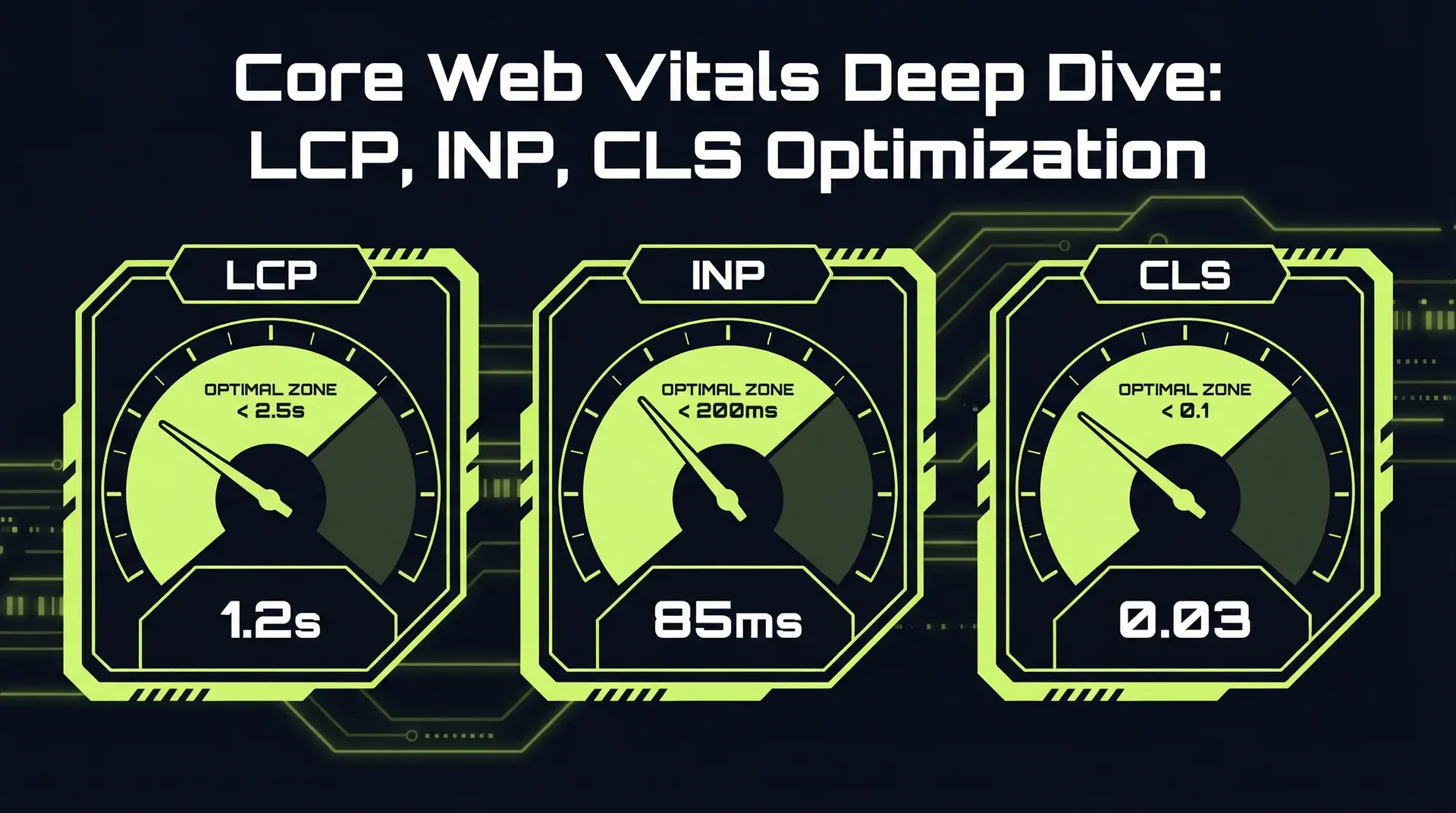
TL;DR
LCP < 2.5s, INP < 200ms, CLS < 0.1. That's the target. The quick wins: preload LCP images, defer third-party scripts, use next/font with display: swap, reserve space for dynamic content. Fix image preloading and font loading first: both sit directly on the LCP path. INP... the FID replacement since March 2024... requires attention to JavaScript execution time, not only initial load. Latency has a price: Amazon's widely cited finding was about 1% of sales lost per 100ms of delay.
Part of the Performance Engineering Playbook ... from TTFB to TTI optimization.
Why Core Web Vitals Matter Beyond SEO
Google made Core Web Vitals a ranking factor in 2021. But the real reason to care isn't search rankings... it's money.
The data is consistent across industries:
| Improvement | Business Impact |
|---|---|
| 31% faster LCP | +8% sales (Vodafone) |
| 40% lower perceived wait time | +15% SEO traffic, +15% signup conversion rate (Pinterest) |
| Meeting all Core Web Vitals thresholds | 24% fewer abandoned page loads (Google) |
When Vodafone improved LCP by 31%, their sales increased by 8%. That's not correlation... they ran controlled A/B tests.
On a SaaS marketing site, the pages Core Web Vitals grade are the same pages that carry the demo and signup forms.
The threshold breakdown:
| Metric | Good (Green) | Needs Improvement (Yellow) | Poor (Red) |
|---|---|---|---|
| LCP | < 2.5s | 2.5s - 4s | > 4s |
| INP | < 200ms | 200ms - 500ms | > 500ms |
| CLS | < 0.1 | 0.1 - 0.25 | > 0.25 |
Green on all three. That's the goal. Here's how to get there.
LCP Deep Dive: The First Impression
Largest Contentful Paint measures when the largest visible element renders. For most pages, that's a hero image, a heading, or a large text block.
What Triggers LCP
The LCP element is determined by the browser at runtime. It's whichever of these is largest in the viewport:
<img>elements<image>inside SVG<video>poster images- Elements with CSS
background-image - Block-level text elements (
<h1>,<p>,<div>with text)
The browser recalculates LCP as the page loads. That's why you might see LCP shift from a heading to a hero image once the image loads... the final LCP is the last measurement before user interaction.
Common LCP Killers
1. Unoptimized Hero Images
The most common culprit. A 2MB uncompressed JPEG as your hero image guarantees a slow LCP.
// Bad: No priority, no sizing hints
<img src="/hero.jpg" alt="Hero" />;

// Good: Next.js Image with priority
import Image from "next/image";

<Image src="/hero.webp" alt="Hero" width={1200} height={600} priority sizes="100vw" />;
The priority prop does two things: it adds a preload hint and disables lazy loading. For your LCP image, this is non-negotiable.
2. Render-Blocking Resources
CSS and synchronous JavaScript in the <head> block rendering. The browser waits for these before painting anything.
// Bad: External stylesheet blocks render
<link href="https://fonts.googleapis.com/css2?family=Inter" rel="stylesheet" />

// Good: Inline critical CSS, defer the rest
<style dangerouslySetInnerHTML={{ __html: criticalCSS }} />
<link
  href="/styles.css"
  rel="preload"
  as="style"
  onLoad="this.onload=null;this.rel='stylesheet'"
/>
3. Slow Server Response Time (TTFB)
If your server takes 2 seconds to respond, you've already burned 80% of your LCP budget before the browser receives any HTML.
Target: TTFB < 600ms. Ideally < 200ms.
Solutions:
- Edge deployment (I wrote about RSC + Edge here)
- Caching (CDN for static, stale-while-revalidate for dynamic)
- Database query optimization
- Smaller payloads (compress, paginate, defer)
4. Late-Discovered Resources
The browser can't download what it doesn't know about. If your LCP image URL is buried in JavaScript or dynamically constructed, the browser discovers it late.
// Preload the LCP image in the document head
<link rel="preload" href="/hero.webp" as="image" type="image/webp" fetchpriority="high" />
In Next.js, use priority on Image components or add explicit preload links in your root layout.
LCP Optimization Checklist
- LCP image uses WebP or AVIF format
- LCP image has
priorityor explicit preload - Server response time < 600ms
- Critical CSS inlined or preloaded
- No render-blocking JavaScript in
<head> - Hero images properly sized (not 4000px when 1200px is displayed)
INP Deep Dive: The New Responsiveness Metric
Interaction to Next Paint replaced First Input Delay in March 2024. While FID measured the delay before the browser started processing an interaction, INP measures the entire interaction lifecycle... including processing time and the paint that follows.
Why INP Is Harder Than FID
FID was easy to pass. Most sites had green FID scores because it only measured the delay to first processing. You could have a click handler that takes 500ms to execute, and FID would still be green if the browser wasn't busy when the click happened.
INP catches those slow handlers. It measures:
- Input delay: Time from interaction to handler start
- Processing time: Time to execute the handler
- Presentation delay: Time to paint the next frame
The metric reports the 75th percentile of all interactions during a session. One bad interaction tanks your score.
Common INP Killers
1. Heavy JavaScript Execution
Long tasks (> 50ms) block the main thread. If a user interacts during a long task, they wait.
// Bad: One massive synchronous operation
function processLargeDataset(data: DataPoint[]) {
	const results = data.map((item) => complexCalculation(item));
	const filtered = results.filter(predicateFunction);
	const sorted = filtered.sort(compareFunction);
	return sorted;
}

// Good: Break into chunks with scheduler
async function processLargeDataset(data: DataPoint[]) {
	const results: ProcessedData[] = [];
	const CHUNK_SIZE = 100;

	for (let i = 0; i < data.length; i += CHUNK_SIZE) {
		const chunk = data.slice(i, i + CHUNK_SIZE);
		const processed = chunk.map((item) => complexCalculation(item));
		results.push(...processed);

		// Yield to the main thread
		(await scheduler.yield?.()) ?? new Promise((r) => setTimeout(r, 0));
	}

	return results;
}
The scheduler.yield() API (Chrome 115+) explicitly yields to the main thread, letting pending interactions process.
2. Third-Party Scripts
Analytics, chat widgets, ad scripts... each adds JavaScript that competes for the main thread.
// Bad: Synchronous third-party load
<script src="https://analytics.example.com/script.js" />

// Good: Defer or dynamically load after hydration
import Script from "next/script";

<Script
  src="https://analytics.example.com/script.js"
  strategy="afterInteractive"
/>

// Even better: Load only when needed
<Script
  src="https://chat-widget.example.com/widget.js"
  strategy="lazyOnload"
/>
Next.js Script strategies:
beforeInteractive: Loads before hydration (rarely needed)afterInteractive: Loads after hydration (analytics, essential scripts)lazyOnload: Loads during idle time (chat widgets, non-critical)
3. Expensive Renders
React components that trigger heavy computation on state change create slow interactions.
// Bad: Expensive filter runs on every render
function ProductList({ products, filter }) {
	const filtered = products.filter((p) => expensiveFilterLogic(p, filter));

	return filtered.map((p) => <ProductCard key={p.id} {...p} />);
}

// Good: Memoize expensive computations
function ProductList({ products, filter }) {
	const filtered = useMemo(
		() => products.filter((p) => expensiveFilterLogic(p, filter)),
		[products, filter]
	);

	return filtered.map((p) => <ProductCard key={p.id} {...p} />);
}
For large lists, consider virtualization. React-window or TanStack Virtual render only visible items.
4. Layout Thrashing
Reading layout properties (offsetHeight, getBoundingClientRect) forces the browser to recalculate layout. Mixing reads and writes triggers repeated recalculations.
// Bad: Layout thrashing (read-write-read-write pattern)
elements.forEach((el) => {
	const height = el.offsetHeight; // Read (forces layout)
	el.style.height = height + 10 + "px"; // Write (invalidates layout)
});

// Good: Batch reads, then batch writes
const heights = elements.map((el) => el.offsetHeight);
elements.forEach((el, i) => {
	el.style.height = heights[i] + 10 + "px";
});
INP Optimization Checklist
- No long tasks > 50ms on the main thread
- Third-party scripts use
afterInteractiveorlazyOnload - Heavy computations are memoized or moved to web workers
- Large lists use virtualization
- Click handlers don't block with synchronous operations
- No layout thrashing in interaction handlers
CLS Deep Dive: Visual Stability
Cumulative Layout Shift measures unexpected layout changes. When content shifts after the user has started reading or about to click... that's CLS.
What Causes Layout Shifts
1. Images Without Dimensions
When an image loads without reserved space, content below it shifts down.
// Bad: No dimensions, causes shift
<img src="/photo.jpg" alt="Photo" />

// Good: Explicit dimensions
<img src="/photo.jpg" alt="Photo" width={800} height={600} />

// Best: Next.js Image with automatic placeholder
import Image from "next/image";

<Image
  src="/photo.jpg"
  alt="Photo"
  width={800}
  height={600}
  placeholder="blur"
  blurDataURL={blurHash}
/>
The placeholder="blur" shows a low-resolution preview while loading, eliminating any shift.
2. Web Fonts Causing FOUT/FOIT
Flash of Unstyled Text (FOUT) or Flash of Invisible Text (FOIT) shifts layout when custom fonts load.
// next/font eliminates FOUT/FOIT with automatic font-display handling
import { Inter } from "next/font/google";

const inter = Inter({
	subsets: ["latin"],
	display: "swap", // Shows fallback immediately, swaps when ready
	variable: "--font-inter",
});

export default function RootLayout({ children }) {
	return (
		<html lang="en" className={inter.variable}>
			<body>{children}</body>
		</html>
	);
}
Next/font also enables automatic self-hosting, eliminating the external Google Fonts request entirely.
3. Dynamically Injected Content
Ads, embeds, cookie banners... anything that appears after initial render and pushes content.
// Bad: Banner appears and shifts page content
function CookieBanner() {
	const [show, setShow] = useState(false);

	useEffect(() => {
		setShow(!localStorage.getItem("cookies-accepted"));
	}, []);

	if (!show) return null;

	return <div className="fixed-banner">Accept cookies?</div>;
}

// Good: Reserve space or use overlay that doesn't shift content
function CookieBanner() {
	const [show, setShow] = useState(false);

	useEffect(() => {
		setShow(!localStorage.getItem("cookies-accepted"));
	}, []);

	if (!show) return null;

	// Fixed positioning overlays content instead of shifting
	return <div className="fixed right-0 bottom-0 left-0 z-50">Accept cookies?</div>;
}
For content that must be inline, reserve space with CSS min-height on the container.
4. Late-Loading Embeds
YouTube, Twitter, and other embeds load asynchronously. Without reserved space, they shift content.
// Reserve space for embeds with aspect-ratio
<div className="relative w-full" style={{ aspectRatio: "16/9" }}>
	<iframe
		src="https://www.youtube.com/embed/..."
		className="absolute inset-0 h-full w-full"
		loading="lazy"
	/>
</div>
CLS Optimization Checklist
- All images have explicit width/height
- Using
next/fontorfont-display: swapfor custom fonts - Dynamic content reserves space or uses overlays
- Embeds have aspect-ratio containers
- Ads have fixed dimensions in their containers
- Animations use
transforminstead oftop/left/width/height
Next.js-Specific Optimizations
Next.js provides built-in performance features. Using them correctly makes hitting green scores significantly easier.
Image Optimization
The next/image component handles most LCP and CLS optimization automatically:
import Image from "next/image";

// Hero image (LCP element)
<Image
  src="/hero.webp"
  alt="Hero section"
  width={1200}
  height={600}
  priority // Disables lazy loading, adds preload
  sizes="100vw"
  quality={85}
/>

// Below-fold image (lazy loaded by default)
<Image
  src="/feature.webp"
  alt="Feature section"
  width={800}
  height={400}
  sizes="(max-width: 768px) 100vw, 50vw"
  placeholder="blur"
  blurDataURL="data:image/jpeg;base64,..."
/>
The sizes prop is critical for responsive images. It tells the browser which image size to fetch before layout is calculated.
Font Optimization
next/font eliminates font-related CLS and reduces requests:
// app/layout.tsx
import { Inter, JetBrains_Mono } from "next/font/google";

const inter = Inter({
	subsets: ["latin"],
	display: "swap",
	variable: "--font-sans",
});

const jetbrainsMono = JetBrains_Mono({
	subsets: ["latin"],
	display: "swap",
	variable: "--font-mono",
});

export default function RootLayout({ children }) {
	return (
		<html lang="en" className={`${inter.variable} ${jetbrainsMono.variable}`}>
			<body className="font-sans">{children}</body>
		</html>
	);
}
This self-hosts fonts at build time... no external requests to Google Fonts at runtime.
Script Loading Strategies
Control when third-party scripts load:
import Script from "next/script";

export default function RootLayout({ children }) {
	return (
		<html lang="en">
			<body>
				{children}

				{/* Analytics - load after page is interactive */}
				<Script
					src="https://www.googletagmanager.com/gtag/js?id=GA_ID"
					strategy="afterInteractive"
				/>

				{/* Chat widget - load during idle time */}
				<Script src="https://widget.intercom.io/widget/APP_ID" strategy="lazyOnload" />

				{/* Inline script with worker offload */}
				<Script strategy="worker">
					{`
            // Heavy analytics processing
            // Runs in a web worker, doesn't block main thread
          `}
				</Script>
			</body>
		</html>
	);
}
The worker strategy uses Partytown to run scripts in a web worker... particularly useful for heavy analytics.
Route Segment Config
Control caching and revalidation per route:
// app/products/page.tsx
export const revalidate = 3600; // Revalidate every hour
export const dynamic = "force-static"; // Static generation

// This page is statically generated and cached
// Fast TTFB = better LCP
For dynamic pages that need personalization, use streaming:
import { Suspense } from "react";

export default function DashboardPage() {
	return (
		<main>
			{/* Static shell renders immediately */}
			<Header />

			{/* Personalized content streams when ready */}
			<Suspense fallback={<DashboardSkeleton />}>
				<PersonalizedDashboard />
			</Suspense>
		</main>
	);
}
The static shell provides instant LCP; personalized content streams in without blocking.
Measurement and Monitoring
You can't improve what you don't measure. Set up continuous monitoring before optimizing.
Web Vitals Hook
Capture real user metrics in production:
// lib/web-vitals.ts
import { onCLS, onINP, onLCP, onFCP, onTTFB } from "web-vitals";

type MetricName = "CLS" | "INP" | "LCP" | "FCP" | "TTFB";

interface Metric {
	name: MetricName;
	value: number;
	rating: "good" | "needs-improvement" | "poor";
	delta: number;
	id: string;
}

function sendToAnalytics(metric: Metric) {
	// Send to your analytics endpoint
	const body = JSON.stringify({
		name: metric.name,
		value: Math.round(metric.value),
		rating: metric.rating,
		path: window.location.pathname,
		// Include user agent for debugging
		ua: navigator.userAgent,
	});

	// Use sendBeacon for reliability on page unload
	if (navigator.sendBeacon) {
		navigator.sendBeacon("/api/vitals", body);
	} else {
		fetch("/api/vitals", { body, method: "POST", keepalive: true });
	}
}

export function reportWebVitals() {
	onCLS(sendToAnalytics);
	onINP(sendToAnalytics);
	onLCP(sendToAnalytics);
	onFCP(sendToAnalytics);
	onTTFB(sendToAnalytics);
}
Initialize in your app:
// app/layout.tsx
"use client";

import { useEffect } from "react";
import { reportWebVitals } from "@/lib/web-vitals";

export function WebVitalsReporter() {
	useEffect(() => {
		reportWebVitals();
	}, []);

	return null;
}

// In your client wrapper or layout
<WebVitalsReporter />;
Field Data vs Lab Data
Lab data (Lighthouse, PageSpeed Insights in lab mode) tests under controlled conditions... specific device, network, no caching.
Field data (Chrome User Experience Report, real user monitoring) reflects actual user experience across diverse conditions.
Both matter, but field data is the ranking signal. A page can score 100 in Lighthouse and still have poor field CWV due to:
- Slow third-party scripts loading on real networks
- Heavy JavaScript on low-end mobile devices
- Geographic latency for users far from servers
Tools Setup
Development:
- Chrome DevTools Performance tab
- Lighthouse (in DevTools or CI)
- Web Vitals extension for Chrome
Production monitoring:
- Google Search Console (Core Web Vitals report)
- PageSpeed Insights (combines lab + field data)
- Vercel Analytics (if deployed on Vercel)
- Custom RUM with web-vitals library
Continuous monitoring workflow:
- Set up alerts when field metrics cross thresholds
- Weekly review of PageSpeed Insights for key pages
- Run Lighthouse in CI to catch regressions before deployment
- Monthly audit of third-party script impact
# .github/workflows/lighthouse.yml
name: Lighthouse CI
on: [push]
jobs:
  lighthouse:
    runs-on: ubuntu-latest
    steps:
      - uses: actions/checkout@v4
      - name: Run Lighthouse
        uses: treosh/lighthouse-ci-action@v11
        with:
          urls: |
            https://alexmayhew.dev
            https://alexmayhew.dev/services
          budgetPath: ./lighthouse-budget.json
          uploadArtifacts: true
Setting Performance Budgets
Define acceptable thresholds and alert on violations:
// lighthouse-budget.json
[
	{
		"path": "/*",
		"resourceSizes": [
			{ "resourceType": "script", "budget": 300 },
			{ "resourceType": "total", "budget": 500 }
		],
		"resourceCounts": [{ "resourceType": "third-party", "budget": 5 }],
		"timings": [
			{ "metric": "interactive", "budget": 3000 },
			{ "metric": "largest-contentful-paint", "budget": 2500 }
		]
	}
]Putting It Together
Core Web Vitals optimization isn't about chasing arbitrary numbers... it's about building a fast, stable user experience that converts.
The order of operations:
- Measure first: Set up field data collection before changing anything
- Fix LCP: Usually the biggest impact... hero images, fonts, server response time
- Tackle CLS: Reserve space, preload fonts, handle dynamic content
- Optimize INP: Audit third-party scripts, break up long tasks, defer non-essential JS
Micro-optimizations are a distraction while obvious wins sit unclaimed. An uncompressed 3MB hero image will tank your LCP no matter how many React.memo calls you add. Start with the fundamentals.
The business case is clear: faster sites convert better. Every 100ms you shave off LCP correlates with measurable revenue impact. The investment in performance pays for itself.
Ready to get your Core Web Vitals into the green? I help SaaS companies achieve and maintain excellent performance scores while shipping features fast. The two aren't mutually exclusive... they're complementary.
Continue Reading
This post is part of the Performance Engineering Playbook ... covering Core Web Vitals, database optimization, edge computing, and monitoring.
More in This Series
- CDN Caching Strategy ... Edge caching patterns
- RSC Edge: Death of the Waterfall ... Server Components performance
- Node.js Memory Leaks ... Detection and prevention
Need performance optimization? Work with me on your web performance.